
The JavaScript Console is available in all modern web browsers, and Google Chrome is one of the most widely used among them. If you use Chrome as your primary browser for testing and running JavaScript code, it is important to know how to access the JavaScript Console.
There are two simple methods to open the JavaScript Console in Google Chrome.
Method 1: Use Keyboard Shortcut
You have to press three keys simultaneously. The Three Keys are the Control (CTRL) + Shift + J. If you press these keys at the same time on any webpage, the Console will be opened.
Method 2: Using The More Option
Now, if you don’t want to rely on the Keyboard Shortcut, then there is a broader way also present. On any Web Page, you have to click on the Three Dots of Chrome. Now, Scroll Down to find the More Tools option.

Under More Tools, you will get the Developer Tools option. Open the section & go to the Console. However, the best way will be to use the Keyboard Shortcut.
Output:

From the above output, we can see that the Statement given to the Console Log is getting printed on the Console Output. So, we can say that the Console Log can be used to print the statement into any JavaScript Program.
You will often see symbols like the dollar sign when printing values or variables to the console. If you want to understand what this symbol means and how it affects code, check out the article on the Dollar Sign in JavaScript.
2) Console Error Messages Function:
Now, after the Console Log, it is time to print the Error Message. While you work on any programming language, you should have noticed that the Compiler gives an error message.
It is the same kind of process. If you want to prompt an Error on the Call Path, you should use the system. Here, instead of the Console Log, we will use a different approach. To understand, let us check the Syntax of it.
General Syntax: console.error();
Output:

From the above output, we can see that the Message provided in the box is getting printed on the Console with the Error Symbol. So, the Error Statement is executing properly without having any issues. In this case, no Alert Box will be used at all.
3) Console Warning Message Function:
Along with the Error, there is another message service present. That is known as the Warning Statement. The Implementation of Warning Statements is more similar to the Error Statements.
There is a good syntax similarity between Warning & Error Statements. Let us have a look at them from the Syntax itself.
General Syntax: console.warn();
Output:

As you can see from the output, the Statement is getting printed on the screen along with a Yellow Line. This is the symbol that the Warning Statement is getting executed. So, the above-mentioned warning program works completely fine.
4) Console Information Message Function:
If you are going to display some information, then this process can be used. The Console Log & Console Info are two functions whose workings are completely the same.
However, it is used to make a difference between simple printing and information printing in JavaScript.
General Syntax: console.info();
Output:

From the above output, we can see that the Message that is given in the Information Function is getting printed on the screen. And from the Output, you can’t differentiate between the Console Log & Console Info. So, the program is executed successfully.
5) Browser Debugging Console Message:
Modern browsers provide powerful debugging support through the Console, which helps developers monitor program execution. One useful method for this purpose is console.debug().
This method displays debugging messages in the browser’s console, similar to console.log(). It is mainly used during development to track program flow and inspect values while troubleshooting issues.
General Syntax: console.debug();
In some browsers, debug messages may only be visible when the console log level is set to Verbose. This method does not automatically detect errors, but it helps developers add detailed diagnostic messages while testing their programs.
Output:

From this output, we can see that there is nothing printed on the scene. Hence, the working of the Debugging Command is going completely fine. However, you can notice that the JavaScript Program has ended without any printing.
To use the console for debugging in a web page, you first need to include JavaScript correctly in HTML. If you are not sure how scripts are embedded in a page, refer to How to Add JavaScript in an HTML Document before running your console statements.
6) Clear Console Output Screen:
Now, if you are working with us till this point, no doubt that there is a lot of information stored on your Console. And the Console is looking very ugly. So, if you want to clean the Console, you are thinking of relaunching it.
However, there is no need to relaunch the Console in case you want to make it clear. If you want to clear the Console, you can use the Clear Command with the Console. Let us have a look at the general syntax of the Console to Clear.
General Syntax: console.clear();
Output:

From the above output, you can see that nothing is printed on the screen. However, there is a message present as “Console Was Cleared”. So, the Clear Command of the Console is working properly and has removed everything from the output.
7) Console Table Function:
The console.table() method is used to display arrays or objects in a tabular format inside the browser console. This makes complex data easier to read and analyze.
It does not create an HTML table on the webpage. Instead, it organizes structured data into rows and columns within the console for better visualization.
General Syntax: console.table(data);
Output:

In this example, an array of objects is created where each object becomes a row in the table, and each property becomes a column. The console automatically arranges the values in a readable table format.
From the output, you can clearly see that all values are properly organized into their respective rows and columns, making the data easier to understand.
8) Console Group Messages:
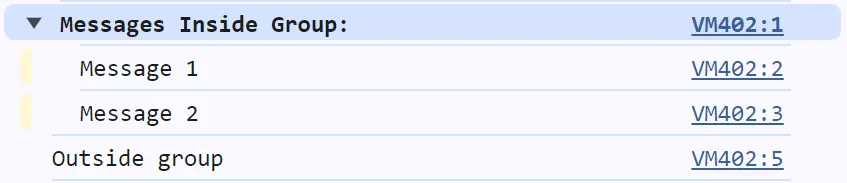
The console.group() method allows developers to group related console messages under a single collapsible section. This is especially helpful when debugging complex programs with many outputs.
Once a group is created, all console messages that follow appear inside that group until console.groupEnd() is called. This does not store the messages but visually organizes them for better readability.
Output:
When Should Students Use Different Console Methods In JavaScript?
As someone who has mentored JavaScript learners for many years, I have seen that most coding mistakes happen because students cannot see what their program is doing internally.
Console methods help you observe your code while it runs, which makes debugging much easier. If you build the habit of using the right console method at the right time, you will solve problems faster.
As per my experience, I am sharing the best Console methods that you can use based on the situations.
- Use console.log() when you want to check the value of variables, confirm outputs, or make sure a particular line of code is executing.
- The console.error() should be used when you want error messages to stand out clearly in the console while testing your program.
- Go with the console.warn() method is used when your code runs, but something looks risky and may create problems later.
- Use console.info() when you want to display helpful messages that explain what part of the program is currently running.
- The console.debug() should be used when you are carefully tracking program execution and need detailed debugging information.
- Use console.clear() when your console is filled with old messages, and you want a clean screen to focus on new results.
- Use the console.table() when working with arrays or objects, and you want the data to be displayed in a clear table format.
- Go with console.group() when you have many related logs and want to organize them into a readable grouped section.
Comparison Table Between Console And Alert In JavaScript:
Oftentimes, students ask me that they are getting confused between the console and alert in JavaScript, as both are used to display messages. However, they serve very different purposes in real programming.
In such cases, I draft a table between them that helps my mentees to understand the differences.
Feature | JavaScript Console | Alert |
Purpose | Debugging | Notification |
Output Location | Developer Tools | Browser Screen |
Interruption | Non-blocking | Blocking |
Usage Level | Development | Basic |
Message Types | Multiple | Single |
Formatting | Advanced | Simple |
Data Display | Structured | Plain |
User Interaction | None | Required |
Professional Use | High | Low |
Common Mistakes Students Make With JavaScript Console Methods:
From my experience, I can say that many students struggle with the JavaScript Console not because it is difficult, but because they are unaware of proper debugging practices.
However, I can assure you that with the right guidance and consistent practice, these mistakes can be easily avoided. Here, I am going to mention some common mistakes that I have witnessed in my students’ copies.
- Sometimes, students write loops that run too many times or stop too early, and to fix this confusion, they should print the loop counter and variable values using console.log().
- Oftentimes, students do not understand why their program suddenly stops working, and to clearly identify the problem, they should use the console.error().
- I have seen students write code that works for now but may create logical or performance issues later, and to highlight such risky situations, they should use console.warn() to display warning messages.
- Sometimes, students are unsure whether an event like a button click is properly connected to their function, and to confirm the program flow, they should use console.info().
- Oftentimes, students struggle to understand how complex conditions and functions are executed step by step, and to carefully trace the program flow, they should use console.debug().
- Sometimes, students test their code repeatedly, and the console becomes cluttered with old messages. To avoid confusion, they should use console.clear() to clean the console window.
- Sometimes, students print many related messages but cannot understand which logs belong together, and to organize related outputs, they should use console.group() so messages appear in grouped sections.
