A student grading system in Java uses if-else statements to convert numerical marks into letter grades (A, B, C, D, F). You create a Student class to hold the name and score, a calculateGrade() method to assign the letter grade, and a main method that takes user input using Scanner. The complete runnable code is below, and you can copy it directly into your IDE.
If your professor just assigned you a Java project to build a student grading system, you are in the right place. This is one of the most common Java assignments for first and second-year CS students, and the good news is that it is not complicated once you see how the pieces fit together.
In this tutorial, I will walk you through building a complete grading system from scratch. We will start simple, then add features like handling multiple students, taking user input, and calculating weighted grades.
By the end, you will have a program you can actually submit, plus ideas for making it your own.
What Is a Student Grading System?

A student grading system is a program that takes a student’s marks as input and gives back a letter grade as output. For example, if a student scores 85 out of 100, the program returns “B.”
In Java, this means writing a program with three main parts:
A Student class that stores each student’s name, score, and grade. A grading method that uses if-else logic to figure out which letter grade matches the score. And a main method that handles user input and displays the results.
That is really all there is to it. Let’s build it step by step.
Complete Student Grading System Source Code
Here is the full working program. You can copy this into your IDE, compile it, and run it right away. I have added comments throughout so you can see exactly what each part does.
import java.util.Scanner;
/**
* Student Grading System
* Takes student names and scores as input,
* calculates letter grades, and displays results.
*/
// Student class to store individual student data
class Student {
private String name;
private int score;
private char grade;
// Constructor: creates a new student and auto-calculates their grade
public Student(String name, int score) {
this.name = name;
this.score = score;
this.grade = calculateGrade(score);
}
// This method converts a number score into a letter grade
private char calculateGrade(int score) {
if (score >= 90) {
return 'A';
} else if (score >= 80) {
return 'B';
} else if (score >= 70) {
return 'C';
} else if (score >= 60) {
return 'D';
} else {
return 'F';
}
}
// Getter methods so we can access private data from outside the class
public String getName() {
return name;
}
public int getScore() {
return score;
}
public char getGrade() {
return grade;
}
}
// Main class that runs the program
public class StudentGradingSystem {
public static void main(String[] args) {
Scanner scanner = new Scanner(System.in);
// Ask how many students to grade
System.out.print("Enter the number of students: ");
int numberOfStudents = scanner.nextInt();
// Create an array to hold all student objects
Student[] students = new Student[numberOfStudents];
// Loop through and collect data for each student
for (int i = 0; i < numberOfStudents; i++) {
System.out.print("Enter name for student " + (i + 1) + ": ");
String name = scanner.next();
System.out.print("Enter score for " + name + " (0-100): ");
int score = scanner.nextInt();
// Validate that the score is between 0 and 100
while (score < 0 || score > 100) {
System.out.print("Invalid score. Please enter a number between 0 and 100: ");
score = scanner.nextInt();
}
// Create the student object (grade is calculated automatically)
students[i] = new Student(name, score);
}
scanner.close();
// Display results
System.out.println("\n--- Student Grade Report ---");
System.out.printf("%-15s %-10s %-5s%n", "Name", "Score", "Grade");
System.out.println("------------------------------");
for (Student student : students) {
System.out.printf("%-15s %-10d %-5c%n",
student.getName(),
student.getScore(),
student.getGrade());
}
}
}
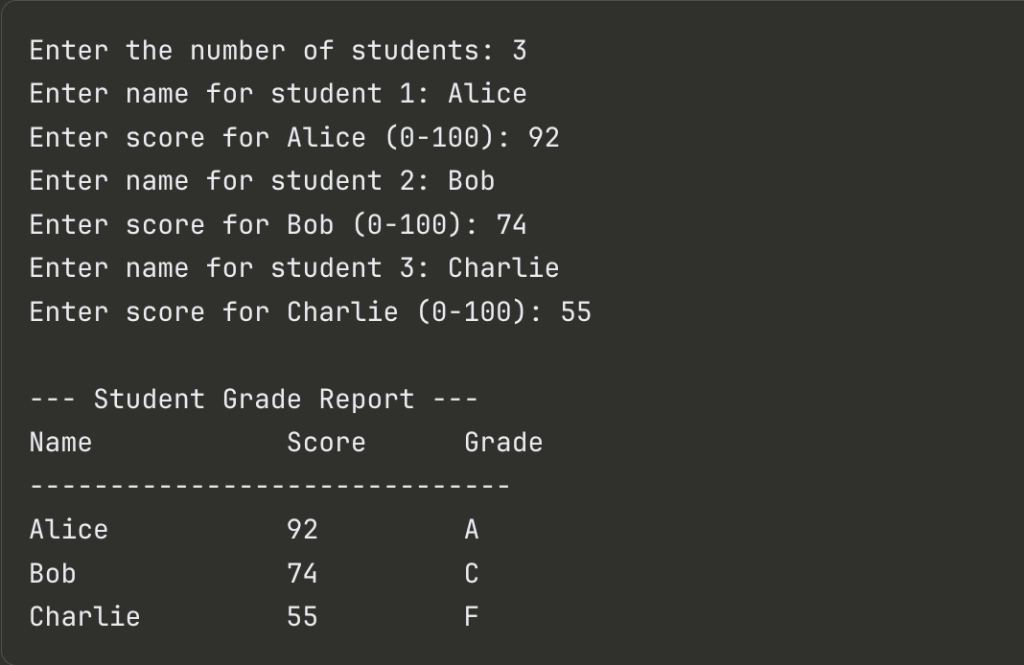
Sample Output
How to Run This Program
If you have never compiled Java from the command line before, here is exactly what to do:
Step 1: Make sure you have the Java Development Kit (JDK) installed. Open your terminal or command prompt and type java -version. If you see a version number, you are good to go. If not, download the JDK from the official Oracle website or install OpenJDK.
Step 2: Save the code above in a file called StudentGradingSystem.java. The file name must match the public class name exactly, including capitalization.
Step 3: Open your terminal, navigate to the folder where you saved the file, and compile it:
javac StudentGradingSystem.javaStep 4: Run the compiled program:
java StudentGradingSystemIf you are using an IDE like IntelliJ IDEA or Eclipse, just create a new Java project, paste the code into a new class file, and hit the Run button.
Understanding the Code Step by Step
Let me break down each part so you know what is happening and why.
The Student Class
This is where we store information about each student. We use three private variables: name (a String), score (an int), and grade (a char). Making them private means other parts of the program cannot change them directly. This is called encapsulation, and it is one of the core ideas in object-oriented programming.
The constructor takes a name and score, saves them, and immediately calls calculateGrade() to figure out the letter grade. So by the time you create a Student object, the grade is already calculated. You never have to call a separate method for it.
If you want to understand how constructors, getters, and encapsulation work in more detail, our guide on encapsulation vs abstraction explains the difference clearly with examples.
The calculateGrade Method
This is the heart of the program. It takes a score and returns a letter grade using simple if-else logic:
| Score Range | Grade |
|---|---|
| 90 to 100 | A |
| 80 to 89 | B |
| 70 to 79 | C |
| 60 to 69 | D |
| Below 60 | F |
The order of the conditions matters. Java checks them from top to bottom and stops at the first one that is true. So if a student scores 85, Java first checks “is 85 >= 90?” (no), then “is 85 >= 80?” (yes), and returns ‘B’ without checking the rest.
If you are still getting comfortable with how if-else chains work in Java, we have a full walkthrough in our if-else statement in Java tutorial.
Input Validation
Notice the while loop after we read the score:
while (score < 0 || score > 100) {
System.out.print("Invalid score. Please enter a number between 0 and 100: ");
score = scanner.nextInt();
}
This is something most student submissions miss, and it is an easy way to impress your professor. Without validation, a user could enter 150 or -20 and the program would just accept it. With this check, the program keeps asking until it gets a valid number.
Formatted Output
Instead of just printing results with System.out.println(), we use System.out.printf() with format specifiers:
System.out.printf("%-15s %-10d %-5c%n", name, score, grade);
The %-15s means “print a string, left-aligned, in a 15-character wide column.” This gives you a clean, table-like output instead of messy unaligned text. Small touch, but it makes your output look professional.
How to Customize This for Your Assignment
Your professor probably wants something slightly different from the basic version. Here are the most common variations and how to handle each one.
Different Grading Scales
Some courses use plus and minus grades (A+, A, A-, B+, etc.). Just change the return type from char to String and add more conditions:
private String calculateGrade(int score) {
if (score >= 97) return "A+";
else if (score >= 93) return "A";
else if (score >= 90) return "A-";
else if (score >= 87) return "B+";
else if (score >= 83) return "B";
else if (score >= 80) return "B-";
else if (score >= 77) return "C+";
else if (score >= 73) return "C";
else if (score >= 70) return "C-";
else if (score >= 67) return "D+";
else if (score >= 63) return "D";
else if (score >= 60) return "D-";
else return "F";
}
Remember to also change the grade variable type from char to String in the Student class and update the getter.
Weighted Grades (Multiple Subjects)
If your assignment requires calculating a weighted average from multiple subjects (like 30% assignments, 30% midterm, 40% final), here is how to modify the Student class:
class Student {
private String name;
private double assignmentScore;
private double midtermScore;
private double finalScore;
private double weightedAverage;
private String grade;
public Student(String name, double assignment, double midterm, double finalExam) {
this.name = name;
this.assignmentScore = assignment;
this.midtermScore = midterm;
this.finalScore = finalExam;
// Calculate weighted average: 30% assignments, 30% midterm, 40% final
this.weightedAverage = (assignment * 0.30) + (midterm * 0.30) + (finalExam * 0.40);
this.grade = calculateGrade(this.weightedAverage);
}
private String calculateGrade(double avg) {
if (avg >= 90) return "A";
else if (avg >= 80) return "B";
else if (avg >= 70) return "C";
else if (avg >= 60) return "D";
else return "F";
}
// Add getters for all fields
public String getName() { return name; }
public double getWeightedAverage() { return weightedAverage; }
public String getGrade() { return grade; }
}
GPA Calculation
Want to add GPA to your output? Here is a quick method you can add to the Student class:
public double getGPA() {
switch (grade) {
case "A": return 4.0;
case "B": return 3.0;
case "C": return 2.0;
case "D": return 1.0;
default: return 0.0;
}
}
Then in your main method, you can calculate the class average GPA:
double totalGPA = 0;
for (Student student : students) {
totalGPA += student.getGPA();
}
double averageGPA = totalGPA / students.length;
System.out.printf("Class Average GPA: %.2f%n", averageGPA);
If you want to go further and build a full GPA calculator tool, we have a working GPA Calculator you can try out.
Saving Results to a File
If your professor wants the output saved to a file instead of (or along with) the console, add this to your main method:
import java.io.FileWriter;
import java.io.IOException;
// After calculating grades, write results to a file
try {
FileWriter writer = new FileWriter("grades_report.txt");
writer.write("--- Student Grade Report ---\n");
writer.write(String.format("%-15s %-10s %-5s%n", "Name", "Score", "Grade"));
for (Student student : students) {
writer.write(String.format("%-15s %-10d %-5c%n",
student.getName(), student.getScore(), student.getGrade()));
}
writer.close();
System.out.println("Results saved to grades_report.txt");
} catch (IOException e) {
System.out.println("Error writing to file: " + e.getMessage());
}
Common Mistakes to Avoid
I have seen a lot of students make these errors when building grading systems. Here is how to dodge them:
Forgetting to close the Scanner. If you do not call scanner.close(), you create a resource leak. It will not crash your program, but your IDE will flag a warning, and it is bad practice.
Using == to compare Strings. If you change your grade from char to String, remember that == compares memory references in Java, not actual values. Use .equals() instead. For example, grade.equals("A") not grade == "A". We explain this in detail in our how to compare two strings in Java guide.
Not validating input. What happens if someone types “abc” when your program expects a number? It crashes with an InputMismatchException. For a basic assignment, the while loop we added handles the range. For a more robust solution, wrap the input in a try-catch block. Our article on how to throw an exception in Java covers this.
Hardcoding the number of students. Using int[] studentMarks = {85, 92, 58, 77, 69} works for testing, but your professor will want dynamic input. Always use Scanner to let the user decide.
Putting everything in one class. For a simple assignment, this works. But if your professor expects “good OOP design,” separate the Student class into its own file (Student.java) and keep the main application in StudentGradingSystem.java.
What Is the Difference Between a Class and a Grade?
This comes up a lot because the word “class” means two different things in Java:
In Java programming, a class is a blueprint for creating objects. It defines what data an object holds (variables) and what it can do (methods). In our program, Student is a class. When we write new Student("Alice", 92), we are creating an object from that class.
A grade is just a value, usually a letter, that represents how well a student performed. It is not a Java keyword or concept. It is simply a variable inside our Student class that holds a character like ‘A’ or ‘B’.
Think of it this way: a class is the mold, and a grade is one piece of information stored inside the object that the mold creates.
If you are new to object-oriented programming concepts like classes, objects, and inheritance, our guide on Java data types is a good place to start before tackling bigger projects.
Ideas for Taking This Project Further
If you have finished the basic version and want to challenge yourself (or earn extra credit), here are some ideas:
Build a GUI version. Use Java Swing or JavaFX to create a window with text fields for student names and scores, a button to calculate grades, and a table to display results. This looks much more impressive than a console application. Check out our JavaFX GUI development guide to get started.
Add a database. Instead of storing students in an array that disappears when the program ends, connect to a SQLite or MySQL database. This way grades are saved permanently. Our database project ideas article has several beginner-friendly database projects you could combine with this.
Calculate class statistics. Add methods to find the highest score, lowest score, class average, and standard deviation. Our standard deviation in Java tutorial shows you exactly how to calculate it.
Sort students by grade. Use Arrays.sort() with a custom Comparator to display students from highest to lowest score. This is a great way to practice sorting in Java. If you want to understand how sorting algorithms work under the hood, our bubble sort in Java article explains the logic.
Key Takeaways
A student grading system is one of the best beginner Java projects because it covers several important concepts in one program: classes and objects, if-else logic, arrays, user input with Scanner, and formatted output.
Start with the basic version (the complete code at the top of this article works as-is), then customize it for your specific assignment requirements. The weighted grades and GPA extensions above cover what most professors ask for.
Always validate your input, format your output cleanly, and separate your classes into different files if your assignment asks for proper OOP structure.
Frequently Asked Questions
How do I change the grading scale in this program?
Edit the if-else conditions inside the calculateGrade() method. For example, if your university considers 85+ as an ‘A’ instead of 90+, just change if (score >= 90) to if (score >= 85). You can also switch from single letters to plus/minus grades by changing the return type from char to String.
Can I use switch-case instead of if-else for grading?
You can, but it is not ideal for ranges. Switch-case works best for exact values. You would need to divide the score by 10 first (switch (score / 10)) and then match cases like case 10: case 9: return 'A';. The if-else approach is cleaner and easier to read for this use case.
How do I handle multiple subjects in the grading system?
Create separate variables in the Student class for each subject score (or use an array of scores). Calculate the average or weighted average, then pass that average to the calculateGrade() method. The weighted grades section in this article shows you exactly how to do this.
What if my professor wants the results sorted by grade?
Use Arrays.sort() with a custom Comparator. Sort the Student array by score in descending order before displaying results. You can write it like this: Arrays.sort(students, (a, b) -> b.getScore() - a.getScore());
How do I add this to a GUI instead of console?
Replace the Scanner input with JTextField components and the console output with a JTable or JTextArea. Java Swing is the simplest option for beginners. Create a JFrame, add input fields and a “Calculate” button, and display results in a table below. If you’re building a Java Swing or JavaFX project and getting stuck on the implementation logic, our Java programming guidance can help you work through it.